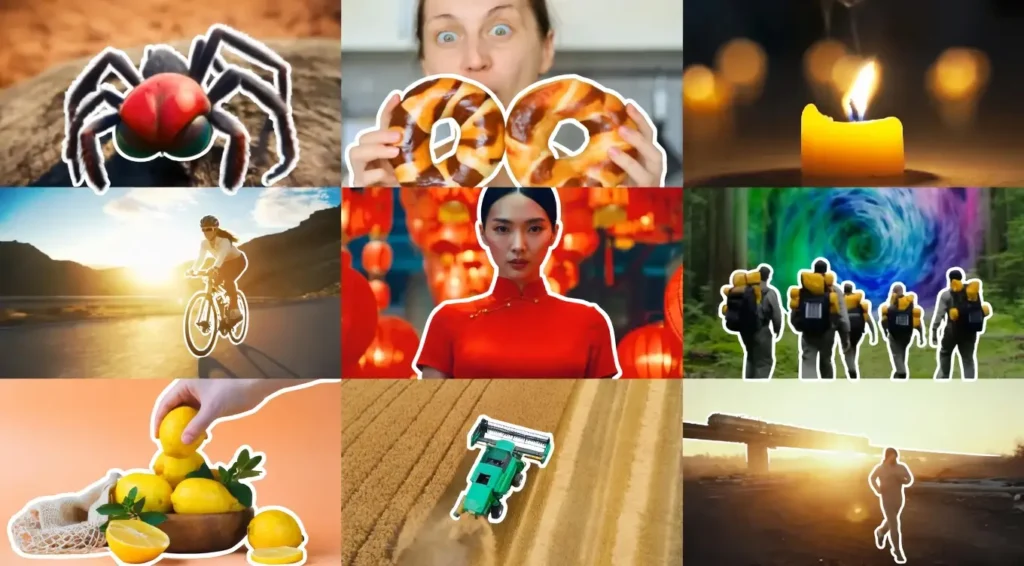
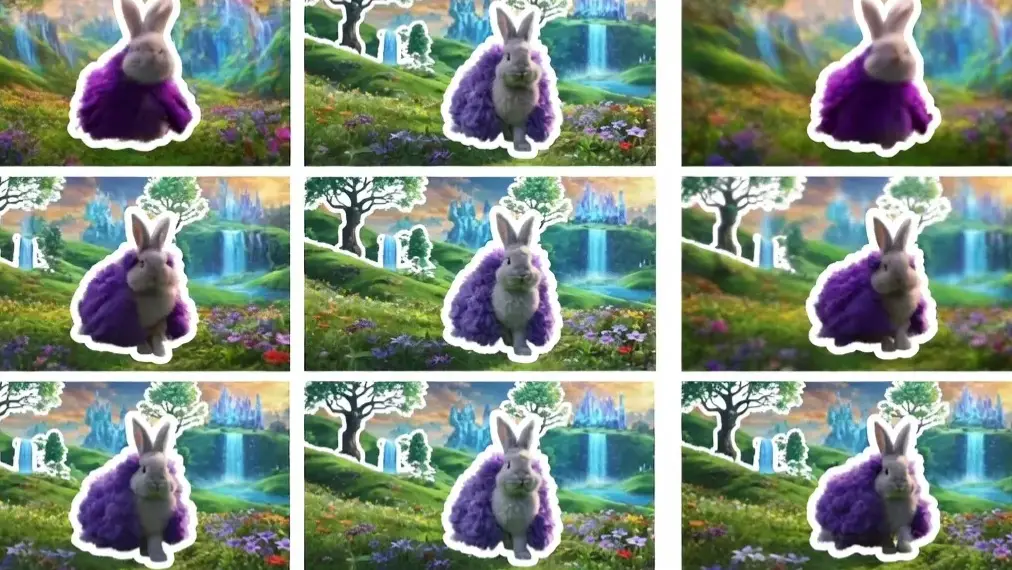
The combination of AnimateDiff and ComfyUI gives creators full local control over AI video generation without monthly fees or cloud restrictions.
This powerful setup allows precise animation creation on personal hardware, offering flexibility that cloud tools like Sora or Luma often cannot match.
Node-based workflows make every parameter visible and adjustable, turning complex video generation into a repeatable process.
This guide walks through everything needed to go from zero to generating smooth AI videos in ComfyUI using AnimateDiff.
Why AnimateDiff + ComfyUI Stands Out
AnimateDiff brings motion to Stable Diffusion models, turning static image generators into video creators.
ComfyUI serves as the visual canvas where users connect nodes instead of typing long commands.
Together, they create a modular system that supports custom workflows, easy experimentation, and complete data privacy.
Compared to Sora or Luma Dream Machine, the local setup offers several advantages. Users own the entire pipeline, can run unlimited generations, fine-tune every detail, and avoid content filters.
While cloud tools deliver quick high-quality results, they limit customization and charge per video.
AnimateDiff excels when creators need specific styles, consistent characters, or integration with personal LoRAs and ControlNets.
The node system also makes it easier to debug and scale animations step by step.
Hardware and Prerequisites: What You Actually Need
Running AnimateDiff requires decent hardware, though clever optimizations make it accessible for many users.
GPU Requirements
- Minimum: 8GB VRAM (works with tricks)
- Recommended: 12GB+ VRAM for comfortable SD1.5 workflows
- Ideal: 16GB–24GB VRAM for SDXL and higher resolutions
Laptop users with RTX 3060 or better can succeed, but desktop GPUs perform more reliably due to better cooling during long generations. CPU-only mode is extremely slow and not practical for video work.
Essential Software
- Windows 10/11 (Linux also supported)
- Latest NVIDIA drivers
- Python 3.10 or 3.11
- Git
ComfyUI Installation Options Most beginners should start with the Portable version (ComfyUI Portable). It includes everything needed and avoids complex manual setup. Download from the official ComfyUI GitHub releases, extract the folder, and run run_nvidia_gpu.bat for the first launch.
Step 1: Installing the Core AnimateDiff-Evolved Nodes
The easiest and safest method uses ComfyUI Manager.
- Launch ComfyUI and open the Manager menu (button on the right side).
- Search for AnimateDiff-Evolved and install it.
- Also install ComfyUI-VideoHelperSuite — this package handles video loading, saving, and frame management.
- Restart ComfyUI after installation.
If red nodes appear, click “Install Missing Custom Nodes” in the Manager. This process usually resolves 95% of setup errors automatically.
Step 2: Downloading the Right Motion Modules
Motion modules provide the movement patterns AnimateDiff uses.
Popular Options
- SD1.5 Motion Modules: Most stable for beginners (mm_sd_v15_v2.ckpt recommended)
- SDXL Motion Modules: Higher quality but more demanding on VRAM
Download motion modules from the official AnimateDiff-Evolved repository or Hugging Face. Place .ckpt or .safetensors files in this exact folder: ComfyUI/models/animatediff/
Create the folder if it does not exist. Proper placement prevents the common “No motion models found” error.
The Beginner Blueprint: Setting Up Your First Text-to-Video Workflow
This basic workflow generates a short animated clip from text.
Required Nodes and Connections:
- Load Checkpoint (select a good base model like Realistic Vision or Animagine)
- Load AnimateDiff Model (select your downloaded motion module)
- CLIP Text Encode (Positive and Negative prompts)
- Empty Latent Image (set width/height and batch size)
- KSampler (or KSampler Advanced)
- Video Combine (from VideoHelperSuite)
Key Settings for First Test:
- Frames: 16 (sweet spot for beginners)
- Context Length: 16
- Overlap: 4–6 frames
- Steps: 20–30
- CFG: 7–8
- Sampler: Euler or DPM++ 2M Karras
Write clear prompts describing both subject and motion: A young woman walking through a cherry blossom park, gentle breeze, cinematic lighting, smooth camera pan right
Connect everything properly, hit Queue Prompt, and wait for the first video. The Video Combine node will output an MP4 file in the ComfyUI output folder.
Low VRAM Hacks for 8GB GPU Users
Many creators successfully run AnimateDiff on 8GB cards with these techniques:
- Use LCM (Latent Consistency Models) for 4–8 step generation
- Enable Tiled VAE and Model Optimization nodes
- Apply Quantized or FP8 versions of models
- Add Purge VRAM nodes between major steps
- Lower resolution to 512×512 or 576×320 for vertical content
- Use smaller motion modules and disable unnecessary features
These adjustments can reduce memory usage by 40-60% while maintaining acceptable quality.
Adding Character Control with IP-Adapter
Consistent characters separate amateur from professional results.
Setup Steps:
- Install ComfyUI-IPAdapter_plus via Manager
- Load a clear reference face image
- Connect IP-Adapter node with strength 0.8–1.0
- Use FaceID or Plus variants for best results
Combine IP-Adapter with ControlNet OpenPose or Depth for even stronger pose and character consistency. This technique works especially well for storytelling videos with recurring characters.
Mastering Motion LoRAs and Prompt Traveling
Motion LoRAs add specific movements like walking, running, or camera zooms without heavy prompting.
How to Use Motion LoRAs:
- Download relevant LoRAs (walking, pan, zoom, etc.)
- Place them in ComfyUI/models/loras/
- Add LoRA Loader nodes and schedule their strength across frames
Prompt Traveling (changing scenes mid-video):
- Use Conditioning schedules
- Split prompts with different weights at specific frame ranges
- Example: Frames 1-8 focus on character introduction, Frames 9-16 shift to action sequence
This creates dynamic videos that feel professionally directed.
Troubleshooting Common Beginner Errors
“No motion models found” Double-check the exact folder path and restart ComfyUI. Ensure files are .safetensors or .ckpt format.
Jittery or Grainy Videos
- Use better VAEs (sd-vae-ft-mse-original)
- Increase steps or adjust sampler sigma
- Enable noise scheduling properly
CUDA Out of Memory (OOM)
- Reduce batch size to 1
- Lower resolution and frame count
- Use VRAM purge nodes
- Close background applications
Missing Nodes Always use ComfyUI Manager to install missing custom nodes and restart.
Exporting Your Masterpiece: Video Combine and Upscaling
After generation, the Video Combine node handles final output. Choose MP4 for best compatibility. For higher quality, export image sequences first, then combine externally.
Simple Upscaling Workflow:
- Use Ultimate SD Upscale node
- Or export frames and process in Topaz Video AI or other tools
- Maintain original aspect ratio to avoid distortion
Many users chain ComfyUI workflows to automatically upscale and add subtle sharpening.
FAQ: Common Beginner Questions
Can I use SDXL with AnimateDiff? Yes, SDXL motion modules exist and deliver higher detail, but they require significantly more VRAM (16GB+ recommended). Start with SD1.5 for learning.
How do I make videos longer than a few seconds? Use frame interpolation, video extension techniques, or stitch multiple generated clips using VideoHelperSuite. Context window management becomes important for longer sequences.
Is AnimateDiff completely free? Yes. The entire setup runs locally with open-source tools. No subscriptions or hidden fees are required.
What base models work best? Realistic models for photoreal videos and anime-specific checkpoints for stylized content. Experiment to find your preferred aesthetic.
Do I need internet after initial setup? No. Once models and nodes are downloaded, everything runs offline.
How long does it take to generate a 16-frame video? On a 12GB GPU, expect 30 seconds to 3 minutes depending on settings and optimizations.
This complete setup turns ComfyUI with AnimateDiff into a powerful personal animation studio. Start simple, experiment with one parameter at a time, and gradually build more complex workflows. The learning curve pays off quickly once the first smooth video appears.