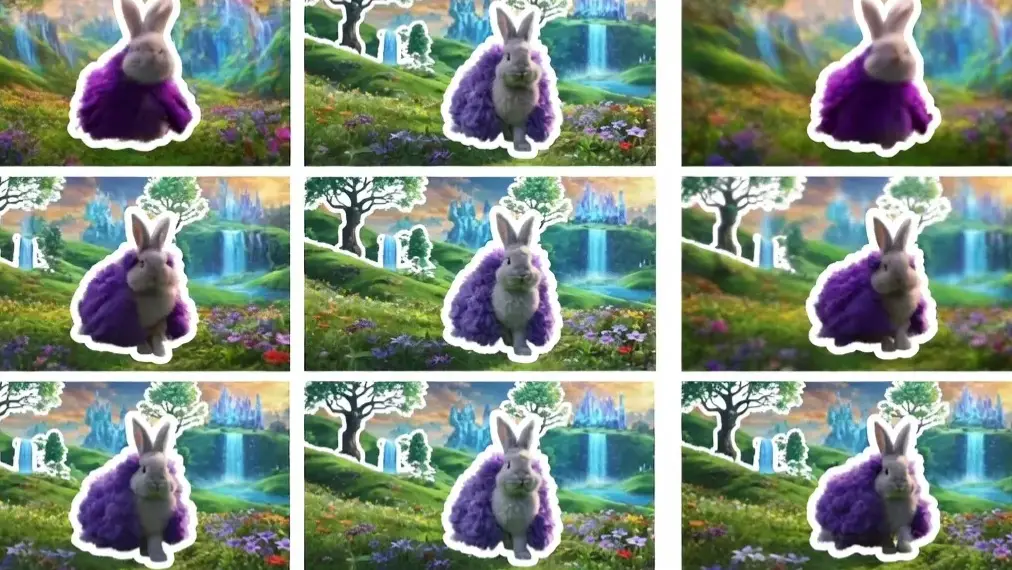
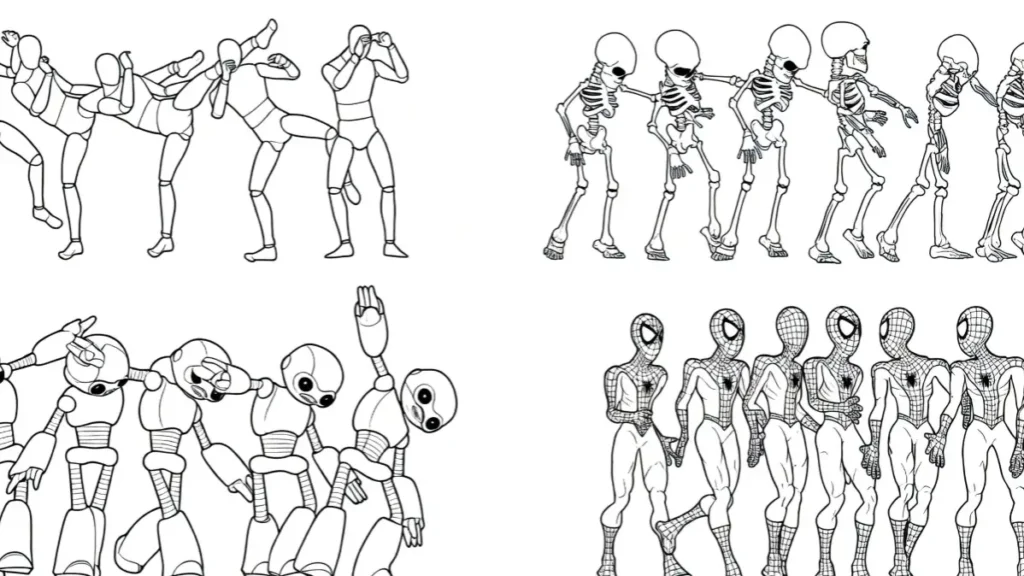
Character consistency remains one of the biggest barriers in AI video generation. Many creators watch their carefully designed characters shift appearance, change clothes, or lose facial details between frames.
This problem gets worse in local setups where users want full control without relying on cloud services. This guide walks through a complete local workflow to produce stable, high-quality characters across video clips using open-source tools available in 2026.
Local setups give creators complete privacy, unlimited generations, and customization that cloud platforms often restrict. While services like Runway or Kling offer convenience, they limit file uploads, add watermarks on free tiers, and charge heavily for longer clips.
Running everything on your own machine removes these restrictions and lets you fine-tune every detail.
Prerequisites: Hardware and Software Requirements
A solid local setup starts with proper hardware. Video generation demands significant computing power, especially for maintaining character consistency across multiple frames.
VRAM Requirements
- Minimum: 12GB VRAM (entry-level for short 720p clips)
- Recommended: 24GB+ VRAM (RTX 4090 or equivalent) for reliable 1080p work
- Ideal: 48GB+ (multiple GPUs or A6000/A100) for 4K experiments and complex workflows
Lower VRAM setups can still work with optimizations like lower resolution, shorter clips, and model quantization, but expect slower speeds and occasional out-of-memory errors.
Essential Software Ecosystem
- Stable Diffusion (latest Automatic1111 or Forge webUI) as the foundation for image generation
- ComfyUI – the most flexible node-based interface for video pipelines
- Python 3.11+ with CUDA 12.4 toolkit
- Key models: IP-Adapter, ControlNet bundles, AnimateDiff, and SVD
- Additional tools: ReActor (Face Swap), CodeFormer/GFPGAN for face restoration
Installation begins with ComfyUI. Download from GitHub, run the manager, and install custom nodes like ComfyUI-Impact-Pack, ComfyUI-VideoHelperSuite, and ReActor. Expect 30-60 minutes for initial setup depending on internet speed.
Step 1: Crafting the Consistent Character Base (Local Image Generation)
Strong character consistency starts with a high-quality reference image. This base becomes the anchor for all video frames.
Using LoRA Training Locally
Train a small LoRA on 10-20 images of your character. Use Kohya_ss or OneTrainer for efficient training on consumer hardware. Focus on consistent lighting and angles during dataset preparation. A well-trained LoRA (rank 8-16) can lock facial features, hairstyle, and body type effectively. Training usually takes 20-40 minutes on a 24GB card.
IP-Adapter FaceID
For faster results without full training, IP-Adapter-FaceID offers excellent face locking. Load your reference photo and set strength between 0.8-1.0. This method works particularly well for maintaining identity across dramatic poses and lighting changes without needing dataset preparation.
Prompt Engineering Tricks
Use detailed, structured prompts like:
“a young woman, 25 years old, long wavy black hair, wearing red leather jacket and black jeans, sharp facial features, detailed skin texture, cinematic lighting”
Add negative prompts to avoid common issues: “blurry face, deformed hands, extra limbs, inconsistent clothing, mutation”. Weight important elements with (parentheses) and fix seed numbers for reproducible results.
Generate multiple base images at 512×768 or 768×512 resolution, then upscale with 4x-UltraSharp or similar models for clean references.
Transitioning from Static Image to Local Video Architecture
Standard text-to-video models often fail at character consistency because they generate each frame somewhat independently. They prioritize overall scene composition over maintaining exact facial landmarks and clothing details from frame to frame.
The successful local pipeline follows this structure:
Seed Image → Face Locking (IP-Adapter) → Motion Control (ControlNet) → Temporal Consistency (AnimateDiff/SVD) → Post-processing
This layered approach ensures the character stays recognizable while allowing natural movement. The key advantage of local setups is the ability to chain these specialized models together exactly as needed.
Step 2: Choosing and Setting Up Your Local Video Model
Several strong options exist for local video generation in 2026.
Wan 2.1 (Image-to-Video Mode)
Wan 2.1 delivers excellent character preservation when starting from a strong reference image. Load your consistent character image as the starting frame and use motion strength settings between 0.4-0.7. It handles clothing and facial details better than many alternatives for short clips.
AnimateDiff
AnimateDiff remains popular for its flexibility within Stable Diffusion workflows. Use Motion Modules like mm_sd_v15_v2 combined with your trained LoRA. Context window size of 16-24 frames works well for smooth short videos. Adjust CFG Scale (4.5-7.0) and Motion Bucket to control movement intensity.
CogVideoX and Stable Video Diffusion (SVD)
CogVideoX excels at following complex prompts while maintaining style. SVD specializes in realistic motion from single images. Combine SVD with ControlNet OpenPose for precise body movement control.
Experiment with each model on the same prompt to see which preserves your specific character best.
Technical Deep Dive: The ComfyUI Workflow Setup
ComfyUI gives the most control for consistent character video.
Core Node Setup
- Load your base character image
- Connect IP-Adapter FaceID node with your reference
- Add KSampler with video-specific settings
- Route through AnimateDiff or SVD motion module
- Use Video Combine node for final output
ControlNet Integration
Apply OpenPose ControlNet for body pose consistency and Depth ControlNet for spatial awareness. Set ControlNet strength to 0.6-0.9. This prevents unnatural limb movements while keeping the character’s core proportions intact.
Reducing Frame Flickering
Use Temporal Consistency nodes or Frame Interpolation models. Apply Gaussian blur filters lightly between frames and use noise injection techniques at low levels to smooth transitions without losing detail.
Save your finished workflow as a JSON template for quick reuse with different characters.
Clothing and Asset Consistency Across Video Scenes
Clothing changes are a frequent issue in longer generations. Address this with regional prompting and masking.
Use detailed clothing descriptions in every frame prompt and apply regional masks to lock specific areas. Reusing the same noise seed map across frames helps maintain texture consistency in fabrics and backgrounds.
For scene changes, generate separate clips with the same character base and stitch them using video editing software. This segmented approach yields better results than forcing one long continuous generation.
The “Face-Swap” Post-Processing Pipeline
Even with strong generation, some frames may need face restoration.
ReActor and FaceFusion
These nodes allow swapping a high-quality reference face onto generated video frames. Process the entire video in batch mode. Set face restore strength carefully to avoid plastic-looking skin.
Face Restoration Tools
Apply CodeFormer or GFPGAN as the final step. These models fix blurry or distorted faces while preserving the character’s unique features. Run this as a post-processing pass on the full video sequence.
Many creators combine IP-Adapter during generation with FaceFusion afterward for maximum consistency.
Troubleshooting Local Character Drifting (The Solutions Gap)
Character drifting—where faces or outfits change mid-clip—happens frequently. Here are proven fixes:
Fixing Mid-Video Face Changes
- Increase IP-Adapter strength
- Use the same reference image in every batch
- Lower denoising strength (0.4-0.65 range)
- Generate shorter 4-8 second segments and extend carefully
CUDA Out of Memory Errors
- Enable model quantization (8-bit or 4-bit)
- Reduce batch size to 1
- Lower resolution during testing
- Close background applications and clear VRAM cache between generations
Motion Settings Adjustments
Lower Motion Bucket values for subtle movements when consistency matters most. Higher CFG Scale helps follow prompts better but can increase distortion—find the sweet spot through testing (usually 5.5-6.5).
Additional Tips
- Always generate at lower resolution first, then upscale
- Use fixed seeds for testing different settings
- Keep detailed notes on working parameter combinations for each character
With practice, these techniques produce remarkably stable characters suitable for professional-looking short films, social media content, and marketing videos.
FAQs
How much VRAM do I really need for consistent character video?
24GB is the practical minimum for comfortable 1080p work. 12GB setups are possible but require heavy optimization and produce shorter clips.
Can I run this workflow on a single GPU?
Yes. Most users successfully run full pipelines on one RTX 4090 or similar high-end card with proper settings.
Which model gives the best character consistency right now?
Wan 2.1 combined with IP-Adapter and post-processing FaceFusion currently delivers the strongest results for most users.
How long does it take to generate a 5-second clip locally?
On a 24GB setup, expect 30 seconds to 3 minutes depending on resolution, model, and settings. More complex workflows take longer.
Is local generation truly unlimited?
Yes. Once the models are downloaded, you can generate as many videos as your hardware allows without monthly fees or credit limits.
What is the best way to maintain clothing consistency?
Combine detailed prompts, regional masking, and fixed seed maps. Generating clothing as separate assets and compositing later also helps.
This local workflow gives creators full creative freedom and professional-grade character consistency without depending on paid cloud services. With patience and systematic testing, impressive results are within reach for anyone willing to invest time in setup and optimization.