Running a capable large language model directly on a smartphone opens up real possibilities for privacy-focused users who want AI available anywhere without relying on cloud services.
Llama 3.1 8B delivers strong reasoning, coding help, and general conversation while operating completely offline.
This guide walks through the entire process using Termux, covering setup, optimization, common pitfalls, and practical ways to use the model.
Why Run Llama 3.1 on a Mobile Device?
Local AI on Android means full data privacy because nothing leaves the device.
This matters for sensitive notes, personal brainstorming, or offline work during travel. No subscriptions, no usage limits, and no internet required after initial download.
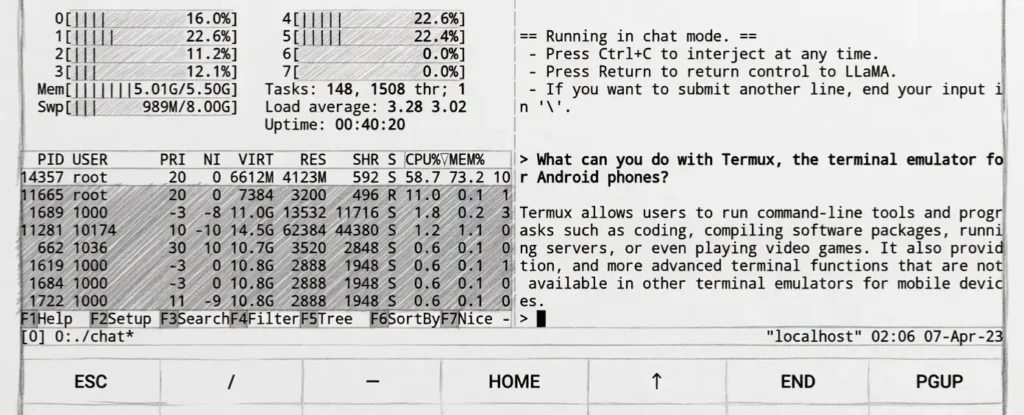
Llama 3.1 8B shows a noticeable improvement over earlier 7B models in coherence, instruction following, and knowledge depth.
On capable phones, it handles everyday tasks like summarizing documents, generating code snippets, explaining concepts, or creative writing.
While not as fast as cloud APIs, the experience feels responsive enough for real use once properly configured.
Hardware Requirements: Can Your Phone Handle It?
Success depends heavily on RAM and processor. The 8B model needs sufficient memory to load weights plus context for meaningful conversations.
- RAM: 8GB serves as the absolute minimum. 12GB or more delivers smoother performance and longer context windows. Devices with 6GB struggle and often crash during generation.
- Processor: Snapdragon 8 Gen series or equivalent MediaTek Dimensity chips perform best. Older chips work but deliver slower token rates (2–6 tokens per second typical).
- Storage: At least 10–15GB free. A Q4_K_M quantized version takes around 5GB, while higher quality files need more.
- Cooling and Battery: Expect noticeable heat and faster drain during extended sessions. Flagship phones manage this better than budget models.
Phones like recent Samsung Galaxy S series, Google Pixel 8/9, or OnePlus devices with 12GB+ RAM give the most reliable results.
Step 1: Setting Up the Termux Environment Safely
Termux provides a Linux-like environment on Android without root access. Always download it from F-Droid, as the Play Store version remains outdated and unsupported.
- Install F-Droid from its official site.
- Search for and install Termux inside F-Droid.
- Open Termux and run these initial commands:
termux-change-repo
pkg update && pkg upgrade -y
termux-setup-storage
This grants storage access for model files and updates packages. Next, install core dependencies:
pkg install git clang cmake python ninja wget curl -yThese tools support compilation and model handling. The process takes time on first run but prepares the environment for the next steps.
Installing Llama.cpp vs Ollama on Android
Two main paths exist: llama.cpp offers maximum performance and customization, while Ollama provides simpler setup for beginners.
Llama.cpp Route (Recommended for Speed)
This lightweight option runs efficiently on ARM processors. Clone the repository and build it:
git clone https://github.com/ggerganov/llama.cpp
cd llama.cpp
make -j4
For better performance, enable optimizations like OpenBLAS or CLBlast during build. The resulting binaries (llama-cli and llama-server) handle inference directly.
Ollama Route (Easier Setup)
Some community builds allow direct installation via Termux repositories. After adding necessary repos (like TUR if available), the command simplifies to:
pkg install ollamaOllama then manages model downloads and running with one command. It trades some raw speed for convenience.
Technical Deep Dive: Compiling Llama.cpp for ARM Architecture
Android uses ARM64 architecture, so proper compilation matters for speed. After cloning the repo:
cd llama.cpp
mkdir build && cd build
cmake .. -DLLAMA_ARM8=ON -DLLAMA_OPENBLAS=ON
make -j $(nproc)
This enables ARM-specific optimizations and BLAS for faster matrix operations. Compilation can take 20–60 minutes depending on the phone. Successful build produces usable binaries in the bin folder.
Test the build with a small model first before moving to Llama 3.1 8B. Adjust thread count (-t 4 or -t 6) based on CPU cores to balance speed and heat.
Choosing the Right Quantization (GGUF)
Quantization reduces model size and memory use while balancing quality. For Llama 3.1 8B on mobile, these options stand out:
| Quantization | Approx. Size | RAM Usage | Quality Level | Recommended For |
|---|---|---|---|---|
| Q4_K_M | ~4.8–5.2 GB | 6–8 GB | Good | Most devices (best balance) |
| Q5_K_M | ~5.5–6 GB | 8–10 GB | Very Good | 12GB+ RAM phones |
| Q8_0 | ~8.5 GB | 10–12 GB | Excellent | Flagship devices only |
| Q3_K_M | ~4 GB | 5–6 GB | Acceptable | Low-RAM testing |
Download GGUF files from Hugging Face repositories (search for “Llama-3.1-8B-Instruct-GGUF”). Q4_K_M serves as the practical default for most users.
Running the Model: Your First Local Chat
Navigate to the model directory and run:
./llama-cli -m models/Llama-3.1-8B-Instruct-Q4_K_M.gguf -c 2048 --color -p "You are a helpful assistant."For server mode (better for repeated use):
./llama-server -m models/Llama-3.1-8B-Instruct-Q4_K_M.gguf -c 4096 -t 6Access the interface via browser at http://127.0.0.1:8080. Keep context length reasonable (2048–4096 tokens) to avoid memory issues.
Performance Hack: Using a Web UI on Mobile
Running a full web UI improves usability. Options include Open WebUI or text-generation-webui. Install via Python in Termux and connect to the llama-server backend. This allows chat through Chrome on the same phone, with features like conversation history and model switching.
Some users pair it with lightweight frontends available on F-Droid for a cleaner mobile experience.
Critical Gap: Battery, Heat, and Background Execution
AI inference stresses the CPU, causing heat and battery drain. Android aggressively kills background processes, so use these workarounds:
- Run inside
tmuxorscreenfor session persistence. - Use battery optimization exceptions for Termux.
- Lower thread count during long sessions.
- Keep the phone cool and avoid direct sunlight.
- Monitor with
htop(install via pkg) and stop generation if temperatures rise too high.
Extended runs on non-flagship phones can drain 20–40% battery per hour.
Troubleshooting Common Termux Errors
- “Killed” Message: Out-of-memory error. Reduce context size, use lower quantization, or close other apps.
- Permission Denied: Run
termux-setup-storageagain and ensure files sit in accessible folders (~/storage/shared). - Architecture Mismatch: Confirm ARM64 builds and matching model files.
- Slow Performance: Increase threads carefully or switch to a lighter quant. Ensure no thermal throttling.
- Installation Failures: Clear cache with
pkg cleanand retry updates.
Use Cases: What Can You Actually Do with Llama 3.1 on Android?
Local Llama 3.1 8B supports many practical scenarios:
- Offline Assistance: Summarize PDFs, brainstorm ideas, or draft messages during flights.
- Privacy-Sensitive Tasks: Process personal notes, journals, or work documents without uploading data.
- Coding Help: Generate and debug code snippets for learning or quick fixes.
- Language Practice: Role-play conversations in multiple languages.
- Content Creation: Brainstorm social media posts, blog outlines, or story ideas.
- Daily Productivity: Task management, reminders with context, or quick research from saved documents.
Performance remains usable for chat (5–15 tokens/second on good hardware) and excels in batch processing.
With proper setup, Llama 3.1 8B turns an Android phone into a capable private AI companion. Start with 8GB+ RAM devices and Q4 quantization for the easiest entry point. Experiment with settings to match your specific phone’s capabilities.
FAQs
What is the minimum RAM needed to run Llama 3.1 8B on Android?
8GB serves as the bare minimum with heavy optimization. 12GB or more provides a much better experience.
Should I use llama.cpp or Ollama in Termux?
Llama.cpp delivers better speed and control. Ollama offers simpler installation for beginners.
Which quantization works best on mobile?
Q4_K_M gives the strongest balance of size, speed, and quality for most Android devices.
Can the model run completely offline?
Yes, after downloading the GGUF file, everything works without internet.
How do I prevent Termux from being killed in the background?
Use tmux sessions, disable battery optimizations for Termux, and avoid switching apps frequently during runs.
Is it safe to run these models on Android?
Yes, as long as files come from trusted sources like Hugging Face and Termux comes from F-Droid.